
Sessions & Chat
A session is a single agent run. Jaade treats sessions as the unit of work: you configure one, watch it happen, review what it changed, and resume it later.
Starting a session (New Task)
The New Task flow is where a session begins. Before sending the first message you choose the agent, model, reasoning effort, permission mode, and whether to use plan mode. If Computer Use or Browser Use is enabled, you can toggle those here too — they bind at session creation, so the choice is locked once the session is live.
The default Claude and Codex buttons open the New Session view directly, so starting a fresh run with your usual agent is a single click.
The command bar accepts plain prompts plus:
- File mentions — reference workspace files so the agent has them in context. You can also "Add to Chat" from a file-viewer tab's context menu.
- Attachments — paste files and clipboard images (OpenCode falls back to text, since it has no attachment support).
- Slash commands and skill mentions — invoke Agent Skills and plugin commands.
The chat
A session opens as a chat in the main pane. The transcript renders:
- Mermaid diagrams from
```mermaidfenced blocks, with an expand modal. - File-aware code blocks — a header chip with the file name and line range, and a left line-number gutter.
- Live subagent transcripts — when the agent spawns a subagent, you see a live, polling view of its work.
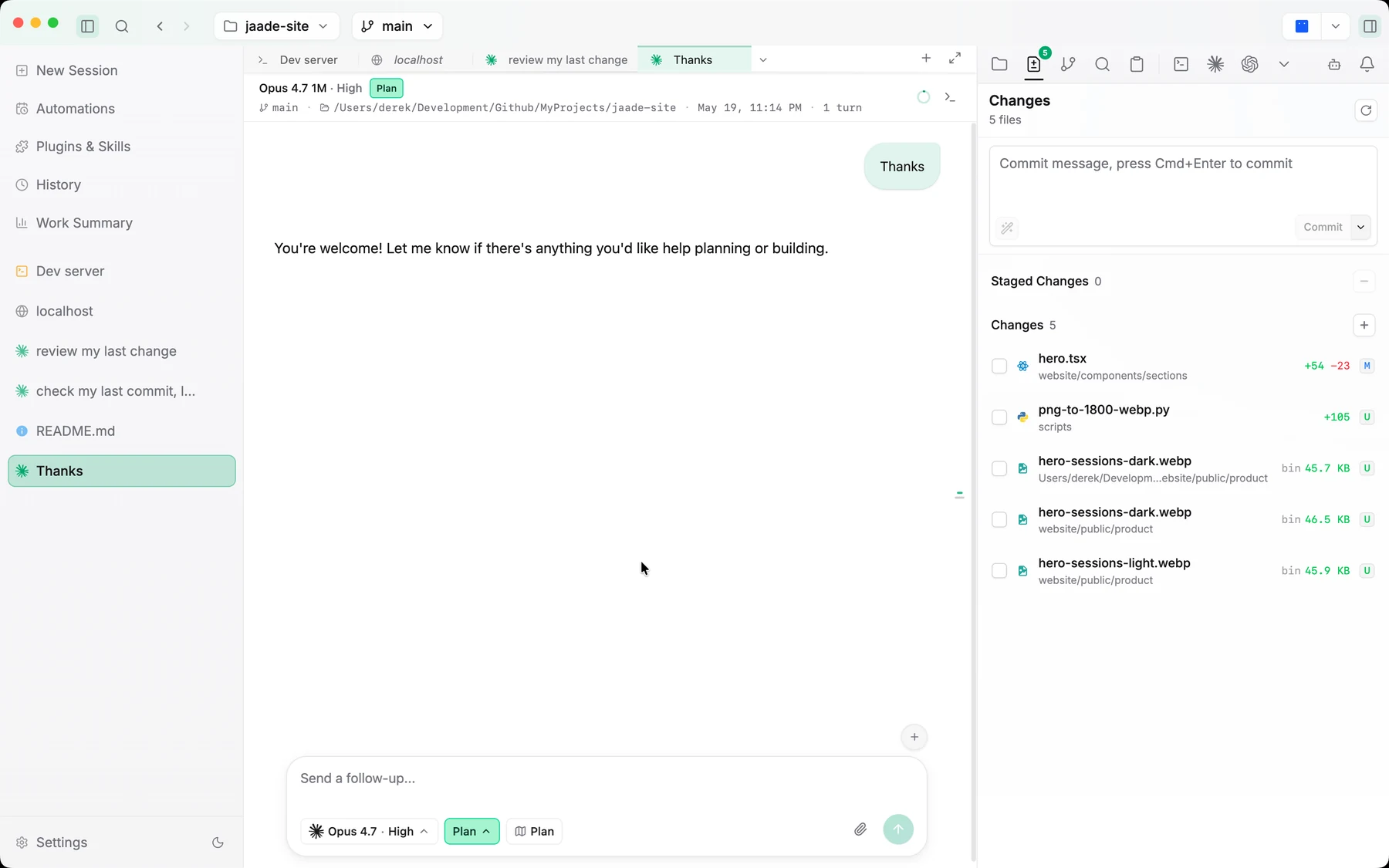
The chat gutter cards
Floating cards sit in the chat's right gutter (and fall back to a popover when the gutter is narrow):
- Plan / todos — the running plan and task list for the session.
- Connectors — which MCP servers the session has touched and which tools each one called.
- Pinned Messages — hover any message to reveal a pin button; pinned messages (user or assistant) are collected here with a role tag, timestamp, and markdown preview. Click an entry to scroll to and flash the source message. Pins persist per session across restarts.
Steering a running turn
You can queue follow-up messages while the agent is working — they stage as steer chips and are delivered on the next turn. A staged steer isn't final: hover a chip and use its edit button to revise the message (including file and skill mentions) before it's sent.
Permissions inline
When an agent needs approval — an edit in default mode, an MCP tool call, a Codex elicitation request — the prompt appears inline as a card you approve or decline. You stay in control without leaving the chat.
Usage at a glance
The command-bar footer shows rate-limit rings and a context-usage pill for the running session, so you can see how much of the model's context and your rate limits a turn is consuming. The pill expands to show rate-limit details.
Session Overview
From a button in the chat header (for both live and past sessions), the Session Overview opens the run as a zoomable mind-map.
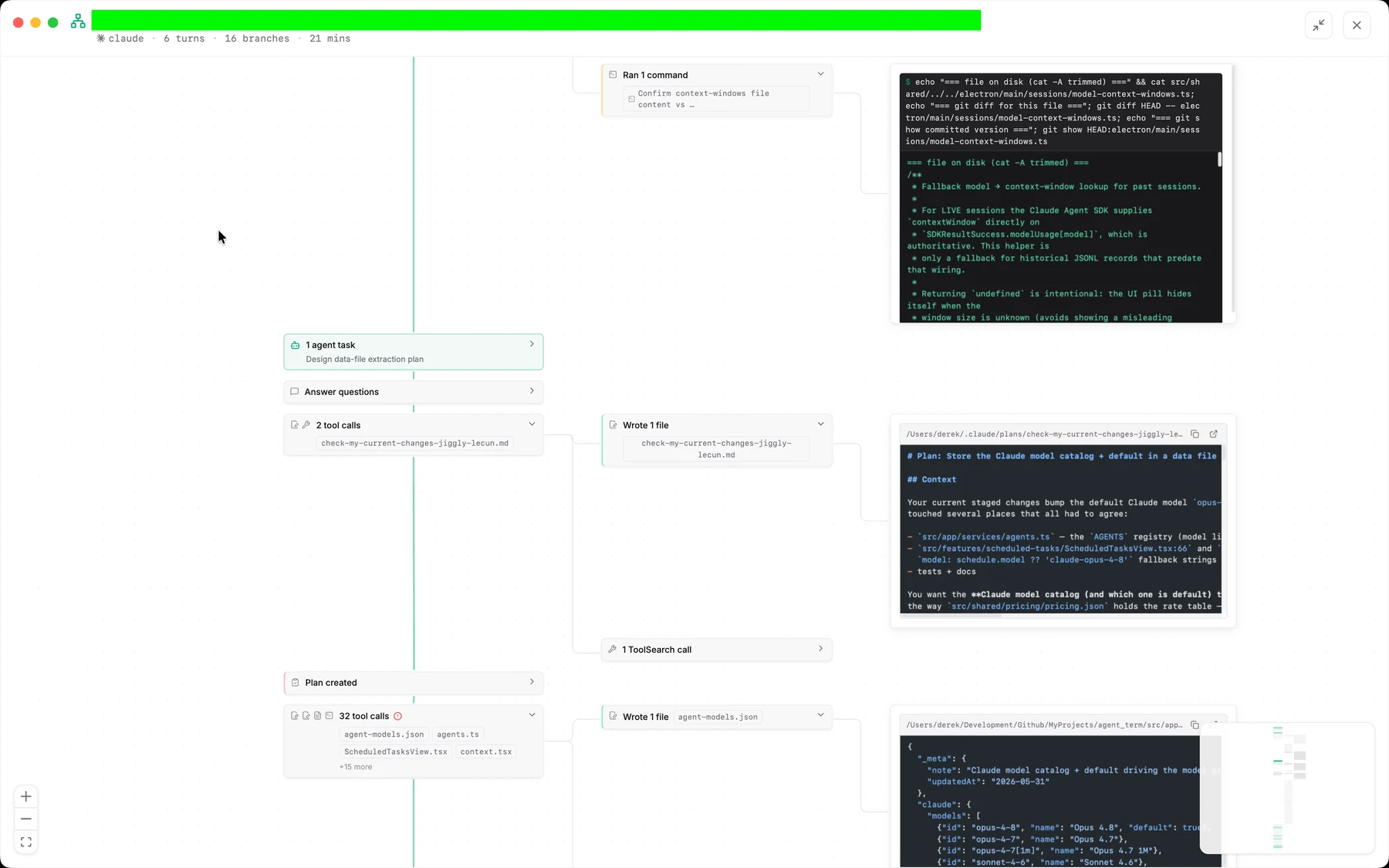
- Each query turn is its own horizontal swimlane, so long sessions grow sideways rather than into one tall column, wired along a curved backbone.
- Click a turn header to drill into it (the others hide; a breadcrumb returns you to the full view). Each turn shows its start → end duration.
- Click a node to scroll the chat to its source message. Drag nodes to pin their positions (persisted per view).
- A timeline strip along the bottom shows every turn as a start dot → duration segment → end dot, with dashed idle gaps; click a dot or segment to center that turn.
- While streaming, it shows a Live badge, an animated active path to the running node, an "Agent is working…" marker, and an inline approval overlay for pending prompts.
History and resuming
Every session is preserved. The History view lists completed sessions sorted by date, with summary cards showing status, model, duration, turn count, and changed-file counts, and filtering/search by agent and status. Open a session's detail to read its full transcript, see its file changes, and resume it — picking the run back up from where it left off.
Because of workspace persistence, open chats also come back automatically on the next launch, idle and ready to resume.
Related
- Agents — models, permission modes, and effort.
- Work Summary — aggregate analytics across sessions.
- Source Control — review and commit what a session changed.