
Computer Use
Experimental · macOS only
Computer Use is an experimental, macOS-only feature. Enable it under Settings → Features → Enable Computer Use (the master gate).
Jaade ships a standalone macOS helper that lets an agent operate the desktop — read an app's accessibility tree, take screenshots, and synthesize mouse and keyboard input. It speaks the Model Context Protocol (MCP), and the same helper works for all four agents.
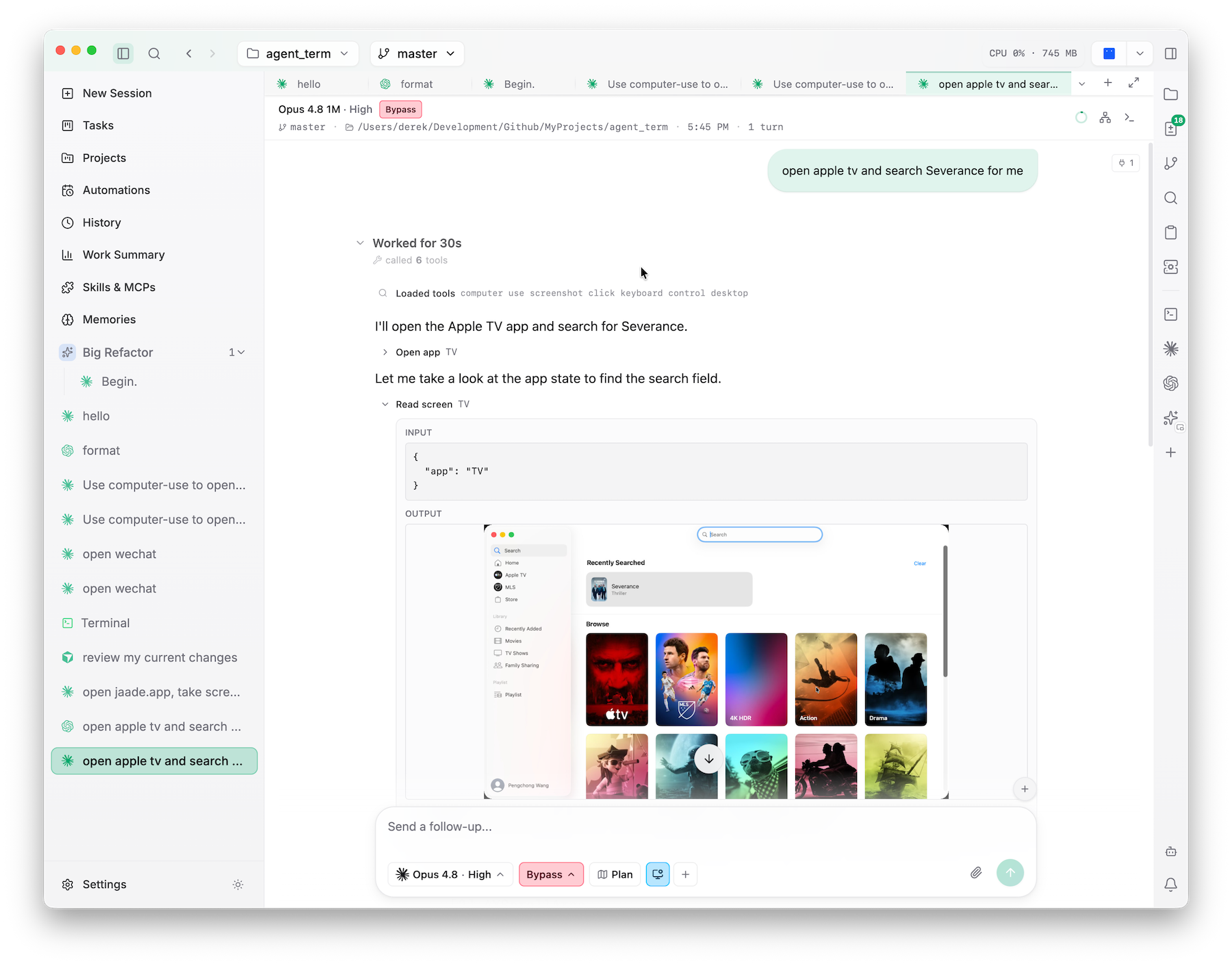
What an agent can do
With computer use on, an agent can:
- Inspect a target app's accessibility tree and take window-scoped screenshots, getting an indexed snapshot of on-screen elements.
- Act on elements — click, set a value, select text, perform secondary (right-click) actions — by referencing elements from the latest snapshot.
- Use raw input — click at coordinates, drag, scroll, press keys, and type text — with or without a snapshot.
- Manage apps — list running apps, open an app, wait, and check permissions.
Enabling it in a chat
- Turn on the master gate: Settings → Features → Enable Computer Use.
- In a chat composer, toggle Computer before sending the first message. MCP servers bind at session creation, so the toggle locks once the session is live — start a new chat to change it.
Once on, computer-use tool calls auto-approve in that session (you consented by enabling the toggle), so individual clicks and keystrokes don't each prompt.
The toggle is per session, and the same choice is available when configuring a scheduled task or a project session — so an automation can opt in (or stay out) on its own.
Permissions (important)
The helper needs macOS Accessibility and Screen Recording permission. macOS attributes these to the app that launched the helper:
- Launched by Jaade → Jaade must be granted (it appears in System Settings, not the helper binary).
- Launched by a terminal agent → the terminal app (Terminal, iTerm, VS Code, …) must be granted.
Grant these under System Settings → Privacy & Security → Accessibility / Screen Recording. Grants don't transfer between the two cases, and Screen Recording changes require relaunching the responsible app. A check_permissions tool reports the current state and remediation steps.
TIP
Password fields trigger macOS Secure Input, which blocks synthesized keystrokes — the agent gets a clear error in that case rather than silently failing.
A shared desktop
A computer-use session shares your desktop. Activating apps moves focus, and your own mouse movement can disrupt an in-flight drag. Treat a running session as sharing the machine with you, and avoid fighting it for the pointer.
From terminal agents
Settings → Features → Install for terminal agents registers the bundled helper into your ~/.claude.json, ~/.codex/config.toml, OpenCode, and Cursor MCP configs (idempotent; it repairs the path after app updates), so agents you run in a terminal can spawn it too.
Related
- Browser Use — the equivalent for driving Chrome.
- Skills, Plugins & MCP — how bundled MCP servers fit alongside the rest.