
Browser Use
Experimental
Browser Use is an experimental feature (available on any OS). Enable it under Settings → Features → Enable Browser Use (the master gate).
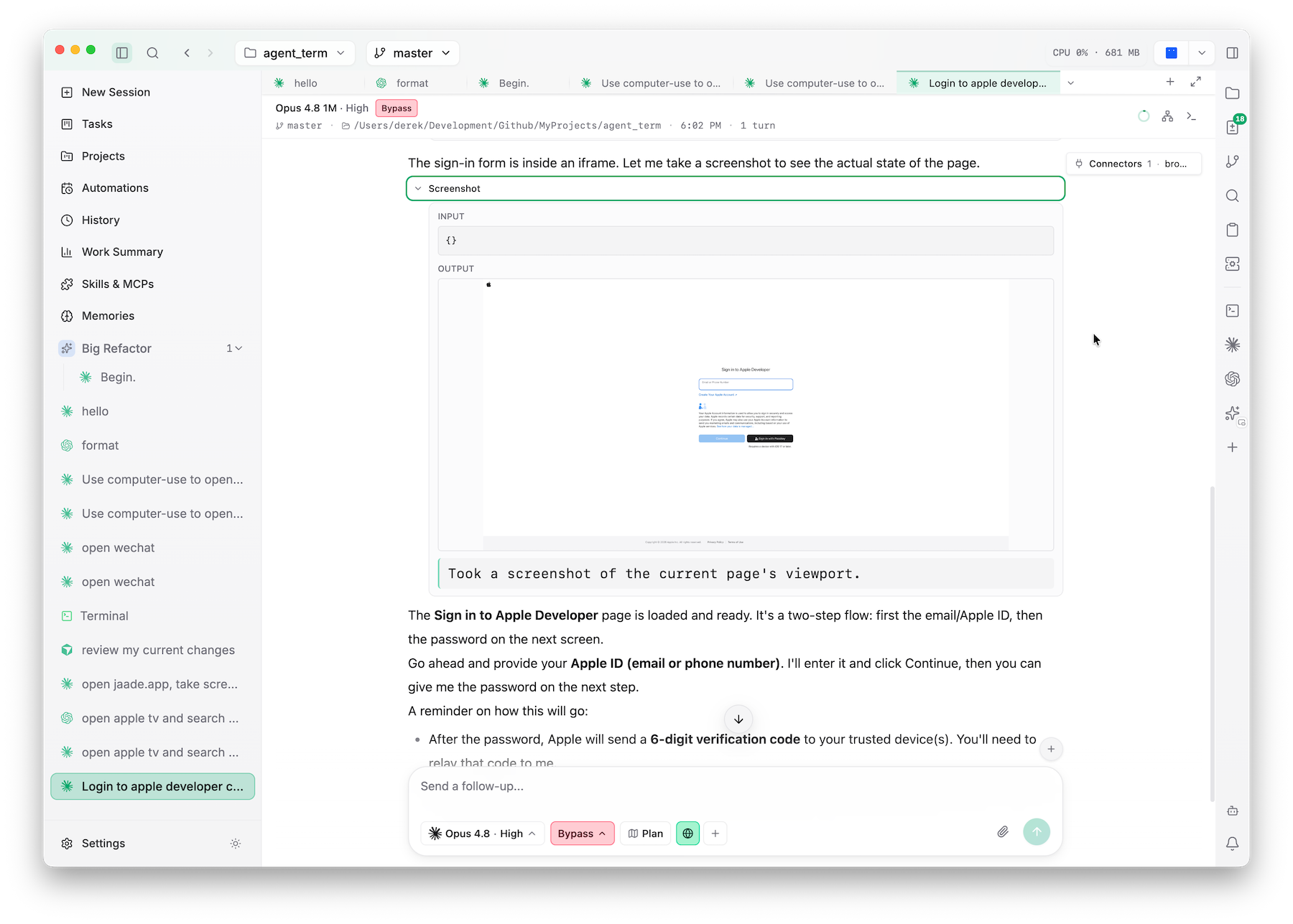
Jaade bundles Google's chrome-devtools-mcp server so an agent can operate your real, running Chrome — navigate, click, fill forms, take screenshots and snapshots, and inspect network, console, and performance. It attaches to Chrome directly (no relaunch flags, no separate profile, no extension) and works for all four agents.
What an agent can do
Browser use exposes a page-snapshot model: a snapshot returns the page's elements as addressable handles, and element tools (click, hover, fill, drag, …) act on them. Agents can also manage pages (list/open/select/navigate), use input (type, press keys, upload files, handle dialogs), take screenshots, evaluate scripts, wait for conditions, inspect network and console, capture performance traces, and run a Lighthouse audit.
One-time Chrome setup
Connecting requires Chrome 144+ and a one-time opt-in:
- Open
chrome://inspect/#remote-debuggingin Chrome. - Enable remote debugging and follow the dialog prompts.
- On the first agent connection, Chrome shows a connection-approval prompt — accept it. (The first tool call may stall until you do.)
The server connects to the default profile of the stable channel. If you run Beta/Dev/Canary as your daily browser, it won't be found.
Enabling it in a chat
- Turn on the master gate: Settings → Features → Enable Browser Use.
- In a chat composer, toggle Browser before sending the first message. The toggle locks once the session is live — start a new chat to change it.
Once on, browser-use tool calls auto-approve in that session. The per-chat toggle is the only consent gate: with it on, the agent uses the bundled server that attaches to your real Chrome; with it off, it can't drive a browser at all.
You can also point browser use at a specific browser profile via its setting under Settings → Features, so agents attach to the profile you intend.
The in-app browser & Add to Chat
Jaade can host a browser pane in the workspace — as the main pane or an auxiliary pane — so a page sits right next to your chat, files, and terminal. From that pane, Add to Chat sends context straight into the composer:
- the page (its URL and content),
- selected text, or
- a screenshot — drag-select a region, capture the visible area, or grab the full page.
It's a quick way to hand the agent exactly what you're looking at without switching windows or pasting by hand.
Security & privacy (important)
A connected agent can see and act on everything in the connected Chrome profile — open tabs, logged-in sessions, cookie-backed content. Treat the per-chat toggle as a deliberate grant:
- Avoid keeping sensitive pages or tabs open while a browser-use session is active.
- Prefer one browser-use chat at a time — concurrent sessions each attach a separate client to the same Chrome and can fight over the active page.
- Each session spawns its own server process, which exits with the session.
Troubleshooting
- "No browser found" / connect errors — Chrome isn't running, is older than 144, doesn't have remote debugging enabled, or you're on a non-stable channel.
- First tool call hangs — check Chrome for the pending connection-approval prompt.
- Terminal entry fails — the terminal integration uses
npx, which needs Node ≥ 20.19 on yourPATH.
From terminal agents
Settings → Features → Install for terminal agents registers the server into your ~/.claude.json, ~/.codex/config.toml, OpenCode, and Cursor MCP configs (idempotent), so terminal agents can spawn it too.
Related
- Computer Use — the equivalent for driving the macOS desktop.
- Skills, Plugins & MCP — managing MCP servers.