
Files & Editor
Jaade is file-aware: a workspace's files are always within reach, and the file viewer is a first-class editor, not a read-only preview.
File explorer
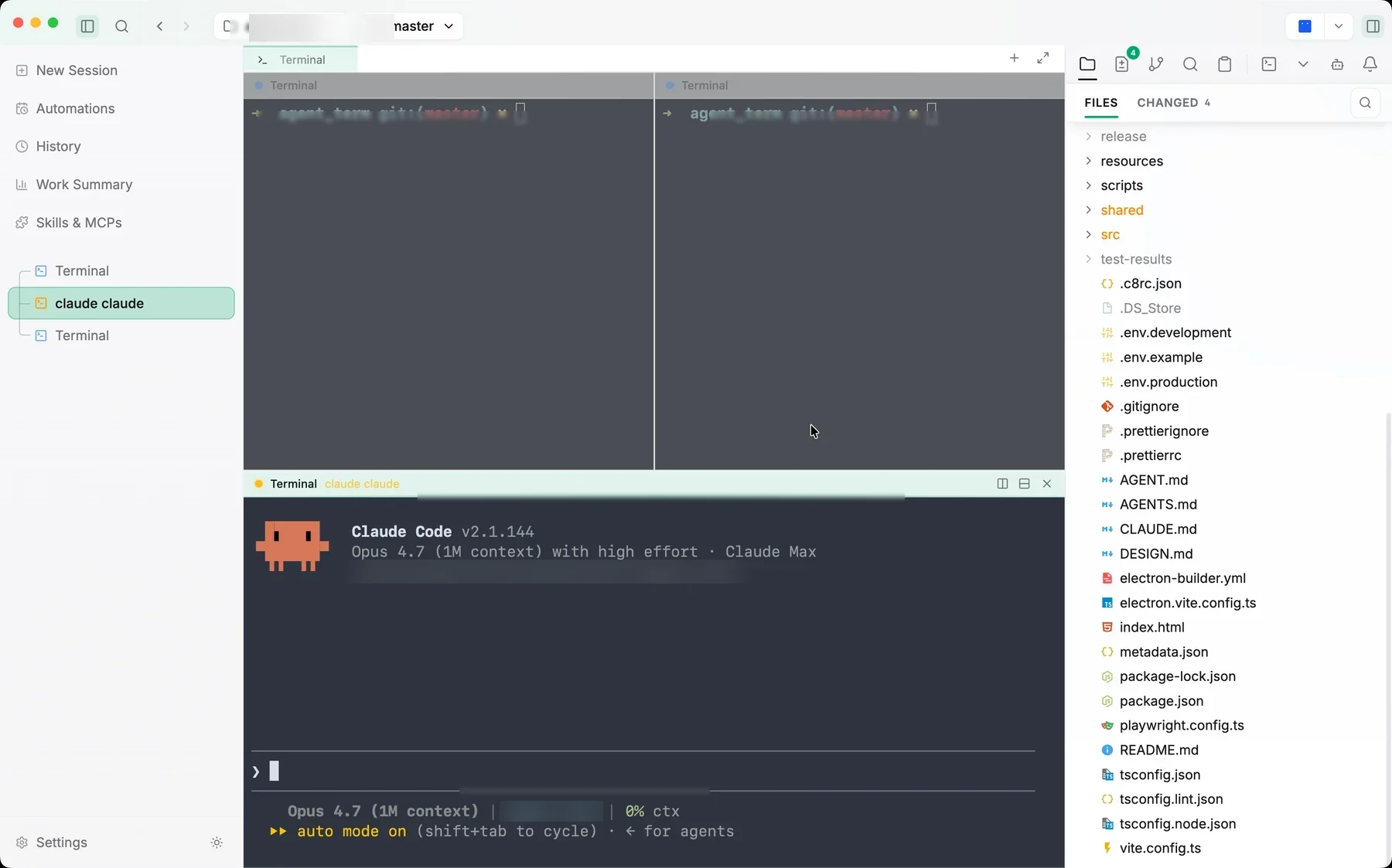
The Files panel in the right rail browses the workspace tree. It:
- Auto-reveals the file currently open in the viewer — highlighted and scrolled into view. The main pane takes precedence; if a file is open in a visible aux pane (and not the main pane), the explorer follows that instead.
- Offers a tree / flat layout toggle and toggles for hidden and git-ignored files.
- Supports inline create and rename, plus root-level New File / New Folder buttons, and a right-click context menu (open, reveal in OS, copy path, open in external editor, …).
A Search panel sits alongside it with two tabs: Name (a fuzzy filename search with highlighted match characters) and Content (a ripgrep-powered code search).
The file viewer
Open a file from the explorer or the command palette to view it in the main pane.
- Syntax highlighting for common languages plus config and build files — Dockerfile, Makefile, CMake, TOML, INI, shell profiles, and more — and Markdown rendering with a preview pane.
- Editable by default. Text files can be edited in place; save with
Cmd/Ctrl+S. Unsaved edits mark the tab with a dirty indicator, and closing a tab with unsaved changes prompts you to save or discard. A lock icon is always shown and highlights when a file is read-only (binary, truncated, or outside the workspace); click it to toggle editable / read-only. - Rich previews for images (including HEIC/HEIF on macOS) and Office documents (
.docx,.xlsx,.pptx) with zoom controls; preview errors are surfaced rather than failing silently. File icons resolve for uppercase extensions (README.MD,PHOTO.JPG) too.
Secondary panels
The source pane is the primary left pane; one secondary panel can render on the right at a time:
- Markdown preview — live rendering alongside the source.
- Diff view — see what changed, with git staging integration.
Both support the same split and maximize model, with consistent Preview/Diff controls.
Vim mode
Optional vim keybindings for the file viewer and editors, with a mode status bar at the bottom. The Ex commands :w (save), :q (close), and :wq / :x (save and close) work. You can set the NORMAL-mode block cursor's color and whether it blinks. See Appearance configuration.
Language intelligence (LSP)
Optional LSP integration adds, per language:
- Diagnostics — wavy underlines with hover tooltips.
- Go to definition —
Cmd+Clicka symbol. - Fix with an agent — the diagnostics popover offers Fix N error(s) / Fix N warning(s) buttons that launch an agent session scoped to those diagnostics, using your default model and reasoning effort.
LSP can be toggled per language from a status bar at the bottom of the viewer (workspace-scoped). It supports TypeScript, Python, Rust, Go, C/C++, Java, and more. When a language server isn't on your PATH, the viewer surfaces install hints and a recheck flow. There's a global on/off and an initialize-timeout setting under Advanced configuration.
Tabs and attachments
File-viewer tabs have an Add to Chat context-menu entry that mentions the open file into the active session. The command bar also accepts pasted files and clipboard images as session attachments.