
Quick Start
This walkthrough takes you from a fresh install to your first reviewed agent change. It assumes you've installed Jaade and set up at least one agent.
1. Open a workspace
A workspace is just a project folder. Open one from the workspace selector in the title bar (or let Jaade reopen your last workspace on launch — see Workspace settings).
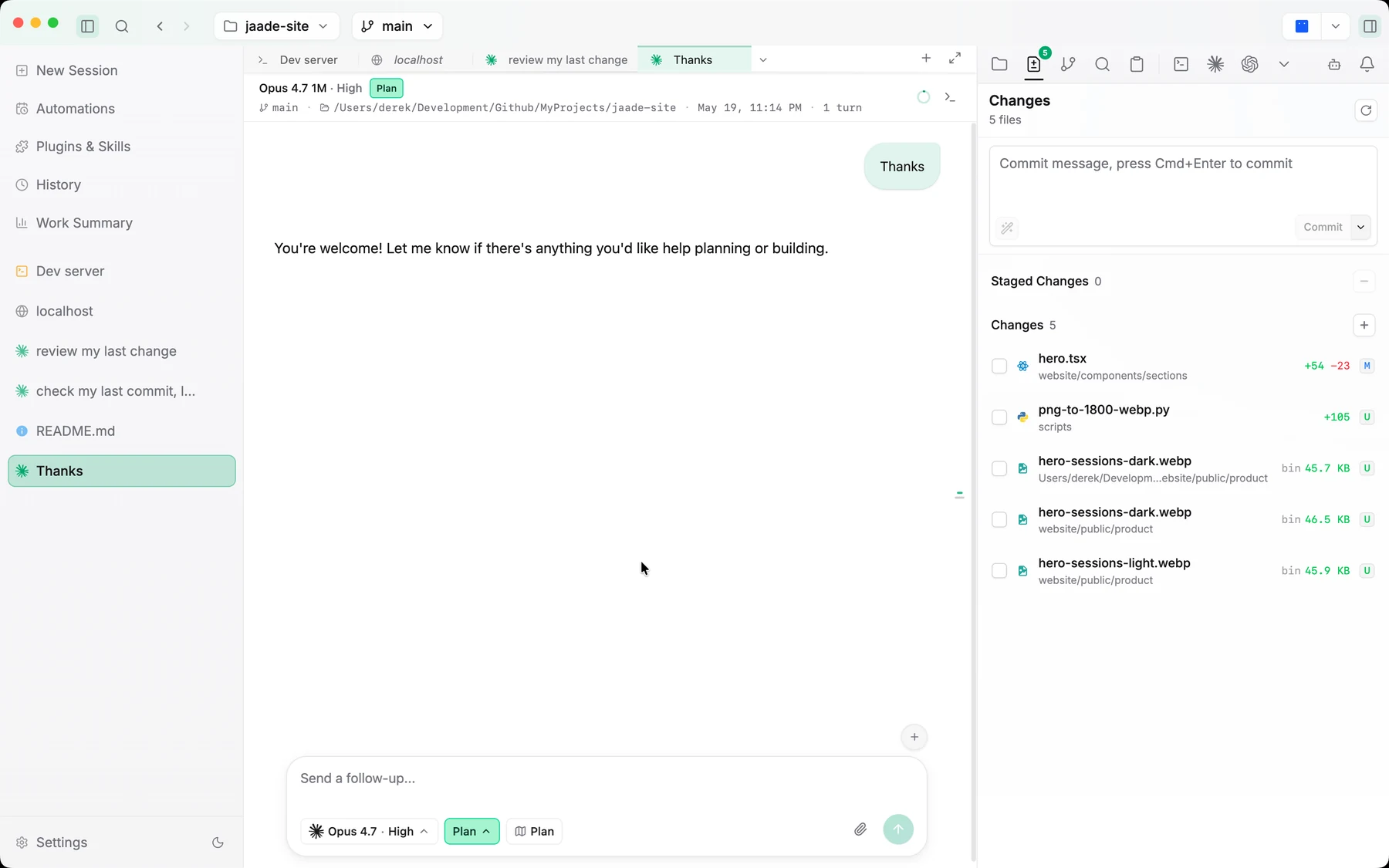
Once open, the title bar shows the workspace name and current git branch, the left sidebar lists your sessions, and the right rail gives you the file explorer and tools.
2. Start a session
Start a new agent session (the New Task flow). Before you send the first message you can choose:
- Agent — Claude Code, Codex, OpenCode, or Cursor.
- Model — the agent's model, e.g. a Claude Opus or a GPT-5 Codex model.
- Reasoning effort — low / medium / high / extra-high.
- Permission mode —
default,acceptEdits, orbypassPermissions. - Plan mode — have the agent propose a plan before acting.
- Optionally Computer or Browser use, if enabled.
Type your prompt and send it. The session opens as a chat in the main pane.
3. Watch the work
As the agent runs you can follow it two ways:
- The chat transcript, which renders Mermaid diagrams, file-aware code blocks, and a live view of any subagent while it works. Floating cards show the running plan/todos and which MCP connectors the session has used.
- The Session Overview canvas, opened from the chat header, which lays the run out as a mind-map of turns with a live timeline.
If the agent hits a permission prompt, you approve or decline it inline.
4. Review the changes
When the agent edits files, use the right rail to review:
- The Source Control panel lists changed files; open any file's diff to see exactly what changed.
- Open files in the file viewer to read or edit them yourself — text files are editable, and you can save with
Cmd/Ctrl+S.
Stage the files you want intentionally rather than committing everything at once.
5. Commit
Write a commit message (a template can prefill it) and commit from the Source Control panel. The commit split-button next to the chat input also offers quick, customizable commit actions. If your branch tracks a remote, the title bar shows ahead/behind buttons to push and pull.
Where to go from here
- Group related sessions into a Project and let a master session coordinate workers.
- Turn a recurring prompt into a Scheduled Task.
- Extend agents with Skills, plugins, and MCP servers.
- Ask Jaade Bot to change a setting for you in plain language.
Next, read Core Concepts to understand the layout and the ideas the rest of the docs build on.